Category Archives: Z Video

How to Make Free Picasa Video Part 1

How to Make Free Picasa Video Part 1 is the start of a tutorial on making a slide video good for advertising or sharing photographs.

Make Free Picasa Video

I was asked how I put together my videos. I never even thought that I might know something that some else might be interested in knowing. I am going to try to cover the steps needed to put together a free and professional looking video that you can share on Youtube or wherever you may want to use it.
The first thing you will need to do is get Googles Picasa – it is a free photo program that works well with any type of picture not just photos. Download it at http://picasa.google.com/intl/en/

I call it a video but I guess it really an upscale slide show.


Part 1

You can easily load photographs from your camera to Picasa or import saved files to view on Picasa. My favorite part of acquiring photos from my camera is that Picasa gives you the option to erase all the photos you are putting on the computer from your camera . This saves time that would be needed later to delete photos from your camera.  In Picasa there is an area where you can make collages which is one of the things I do for certain parts of my photo videos. Your options are to make a mosaic, a picture pile, a framed mosaic, a grid or a contact sheet which is a nice variety to choose from.

Below is a photo that shows all the options I just mentioned.
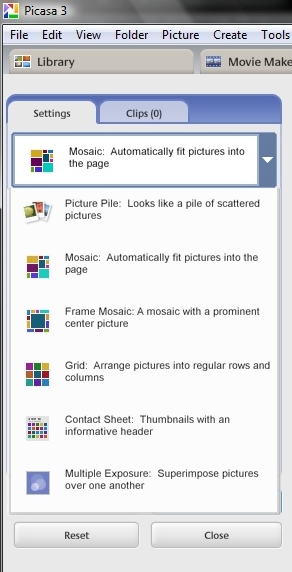
Make Free Picasa Video

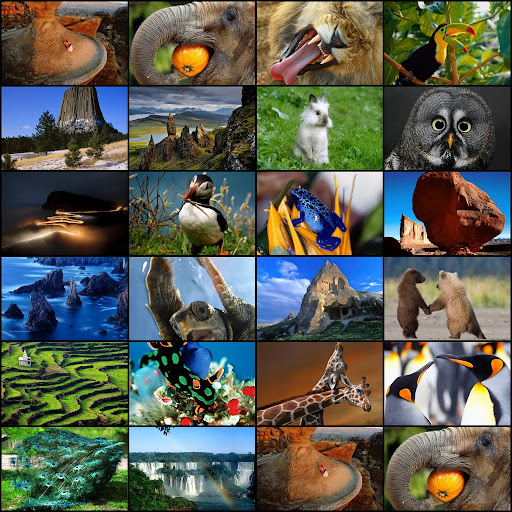
The first option is mosaic which can be a lot of fun for you to work with and give you different ways to put your photos together. If you have a bunch of photos or images you would like to show on one frame of your video this is a great way to set them up. You will get the option of putting a grid between the photos and you can pick the color and the size you want the grid to be. When you have your pics in the grid they are easy to remove and replace and you have a shuffle button. This allows you to choose where you want the photos to display. I just figured this out about the shuffle – the program picks a layout and each time you hit shuffle it move the photos to a different space. Once all your photos have been shown in different areas the computer gives you a new grid.
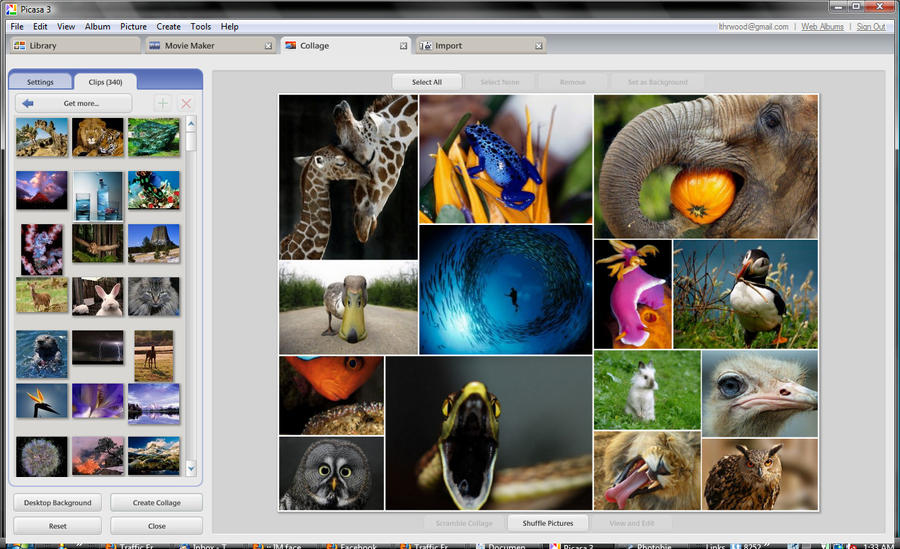
Make Free Picasa Video

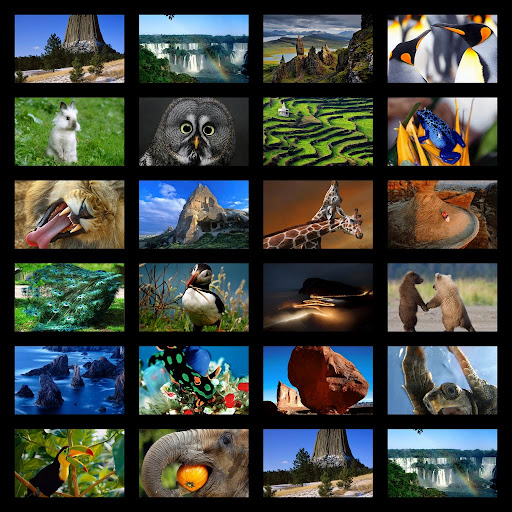
The image below is with the same photos as the first one. The grid is black and wider and the photos have been shuffled.
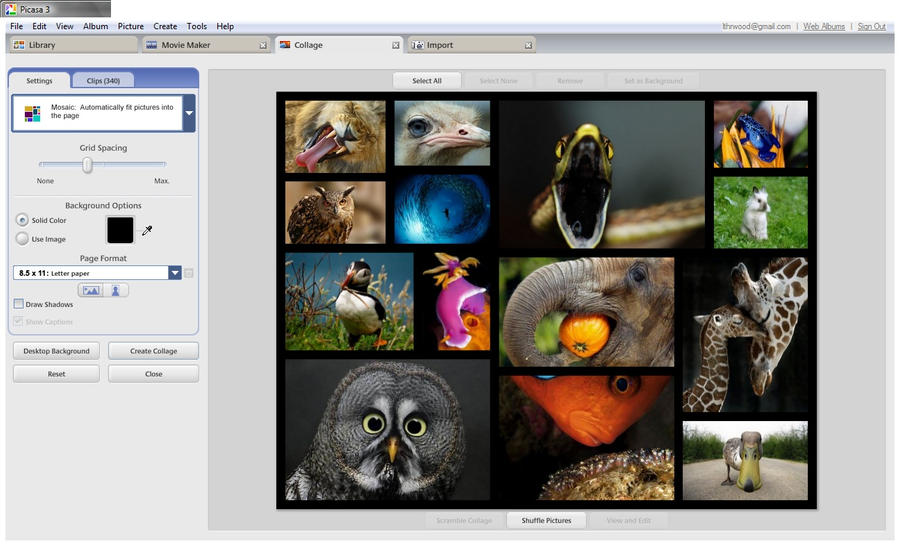
mosaic 2

I will discuss the other parts of the collage in my next post on How to Make a Picasa Video Free Part 2.  In the meantime you can play around with the program and get some hands on experience making a mosaic.
How to Make Your Own Videos for FREE Part 1c

The first thing you will need to do is get Google’s Picasa – it is a free photo program that works well with any type of picture not just photos.
Download it at http://picasa.google.com/intl/en/
You can easily load photographs from your camera to Picasa or import saved files to view. My favorite part of acquiring photos from my camera is Picasa gives you the option to erase from your camera all the photos you are putting on you computer. This saves me time having to delete photos from my camera. There is an area where you can make collages which is one of the things I do for parts of my photo videos. You can make a mosaic, a picture pile, a framed mosaic, a grid or a contact sheet, so your options are pretty good.
~~~~~~~~~~~~~~~~~~~~~~~~
PART 1c
This article will cover those last available options working with collage in Picasa. If you read part one and two you should be quite familiar with this part of the program. Once you are working with it all of these parts will come rather easy to you. The best part of it now is that you can experiment with your own photos and have some fun.
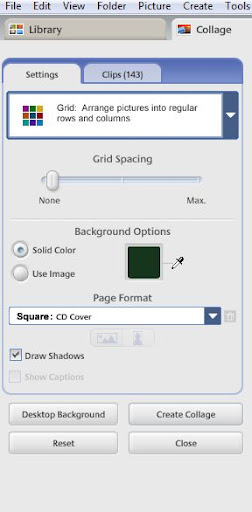
First is Grid: Arrange pictures into regular rows and columns
Below is the menu bar you will see
grid menu
In the next image I used the following settings – grid spacing (just a little) if you use no spacing at all the photos lack individuality. They run into each other but with a tiny bit of a grid you get each to stand out. The grid is set at a solid color and that color is black.
I used draw shadows because that adds just the slightest bit of depth to the images. You can try with it on and off to see the difference and choose which you prefer.
grid 1
In the next image I scrambled the photos and used a bigger grid.
Everything else is set the same.
grid 2
After you are happy with your creation hit save collage. Remember you can always edit at a later time.
The last of the options under collage is
Contact Sheet: Thumbnails with an informative header
cs
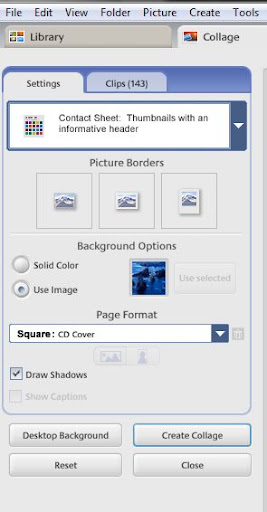
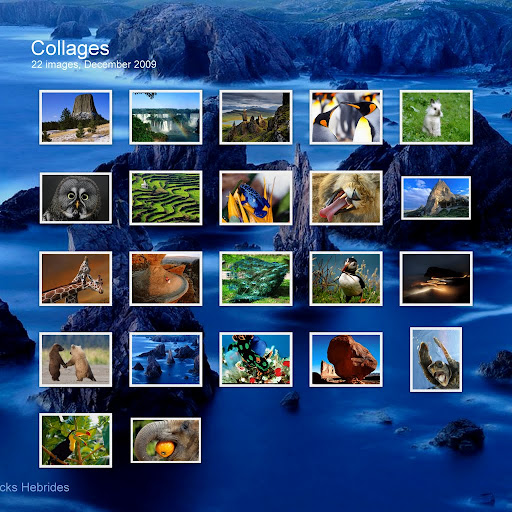
In the image below the following settings were used.
There are three options for frames – I used the center one to add small frames. The frame color can not be changed it is always white.
With this option the amount of space between your photos is done automatically by the program. The more photos you add the less space. I used a photo for the background but you can set it to be a solid color of your choice. There is a color picker so you can choose a color in one of the photos and by holding it over the color you want and clicking it you will get that color instantly. No guessing. Again I added the Draw Shadows option for debth, you can play with this to see if you want it on or off. There is not a big difference when you use this but it does add to the image.
cs 1
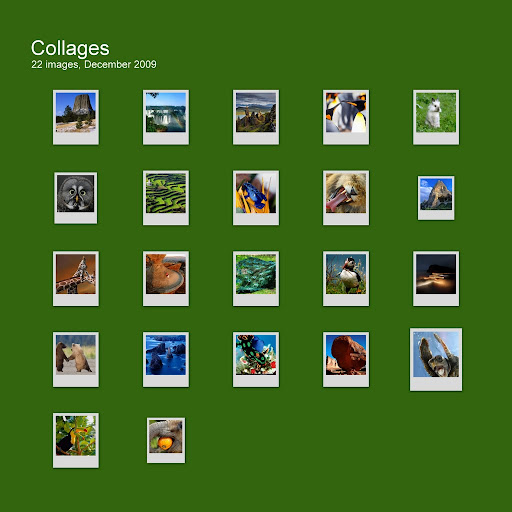
In the next image I used the third option for the photo frames – polaroid. I set the background to a solid color – in this case I use the color picker over the grass of the photo with the bunny rabbit. The draw shadows is on.

I never did find a way to change the title and/or information on the contact sheet. The program chooses what you see. I will start with the ‘Create Movie Presentation’ in my next article. I discovered while putting together a video “The Beauty of Nature” that this is not the only program I have used.
I do hope to cover the Picasa program and then try and give some pointers on ‘Windows Movie Maker’ program.

If there are any questions regarding this program you would like me to cover just message me.
Marisa Horn